Logging Hours in MVP
Head to the Website Listed below to Log In:
https://app.betterimpact.com/Login/Volunteer
-
To gain access to the Website, you can type in the web address listed above into your browser or you can simply click on the link above. The link can also be found on the front page of our Volunteer Website CZBG Connect
If you have a Smart Phone, there is an app you can use to log your hours directly from your phone. The My Impact App is available on both Google Play (Android) and in the App Store (Apple). *See the image for reference, app instructions can be found below

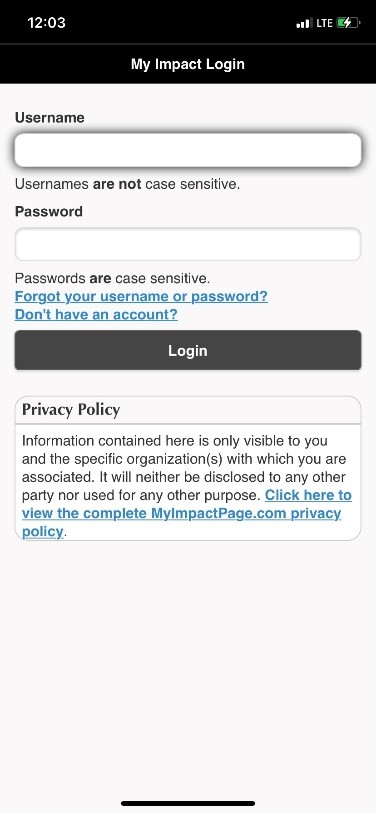
Log-In screen:
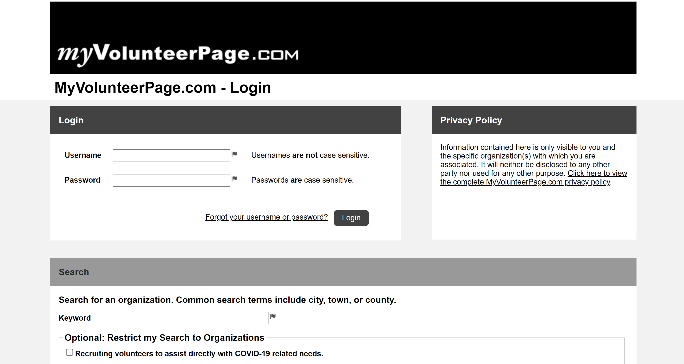
This is where you will enter your Username and Password to gain access to the site.
* If you do not remember your username and password, please use the “Forgot your username or password” button at the bottom of the Log-In box and information will be sent to the e-mail address on file.
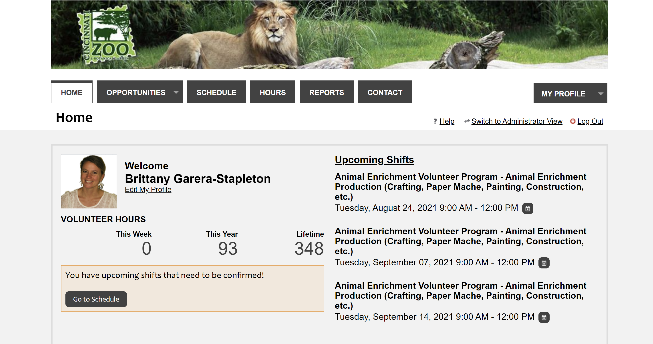
Once you are Logged in this is what you will find your Home Screen:
Through the Home Page you can search for
-
Upcoming Volunteer Opportunities
-
Check your Schedule
-
Sign up for Shifts
-
Update your Profile
-
Send an e-mail directly to your supervisor
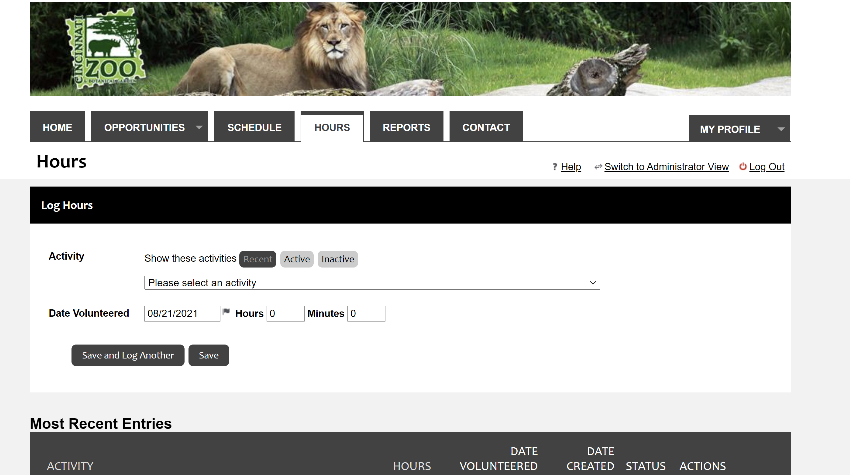
Log your Hours:
Click on the “Hours” Tab on the top of the page and it will default to the Hours screen.
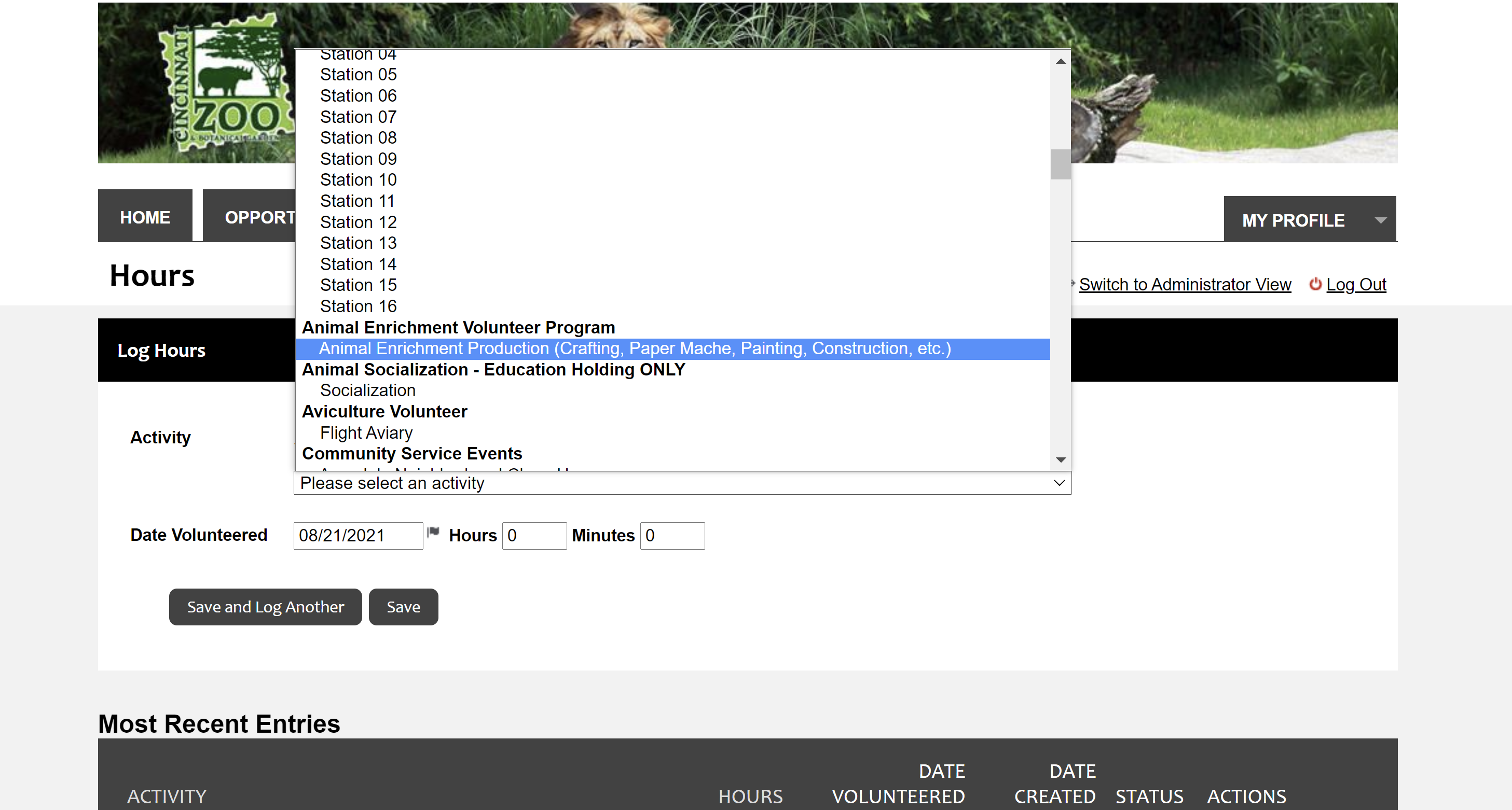
Select an Activity:
Click on the small downward facing arrow and the window will pop up with all of your activity options. Choose the activity that best fits the description of the hours you will be logging.
Once you have selected the activity you can fill in the date and hours you volunteered.
-
If you are entering multiple shifts at one time, you can click on the “Save and Log Another” button. That will keep the same setting and you will only need to change the date and adjust the hours if those have changed.
-
If you are only logging one shift at a time, you can just click the “Save” button and your hours and you are finished.
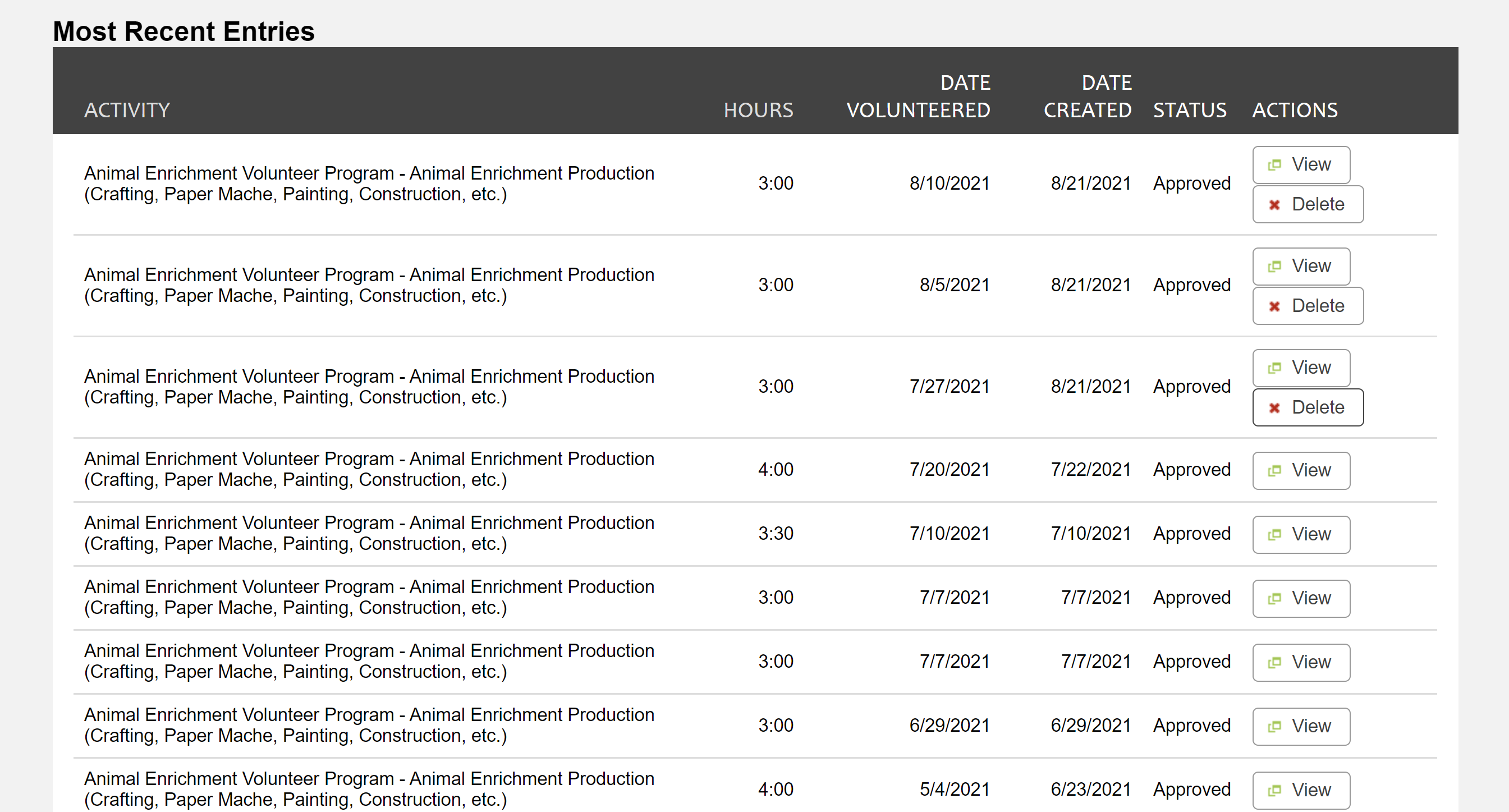
If you would like to review your most recent Entries, you can scroll down on the page to find them. They will be listed in order from the Most Recent Entry to the Oldest.
***
Using the App on your Smart Phone:
Once you open the app on your phone the process is very similar but may look slightly different. Here is an example of how it would look to log hours from your Smart Phone.
Initial Log In Screen
Your Username and Password will be the same for both the app and the website. Just like the Website, you can use the “Forgot your Username or Password?” button.
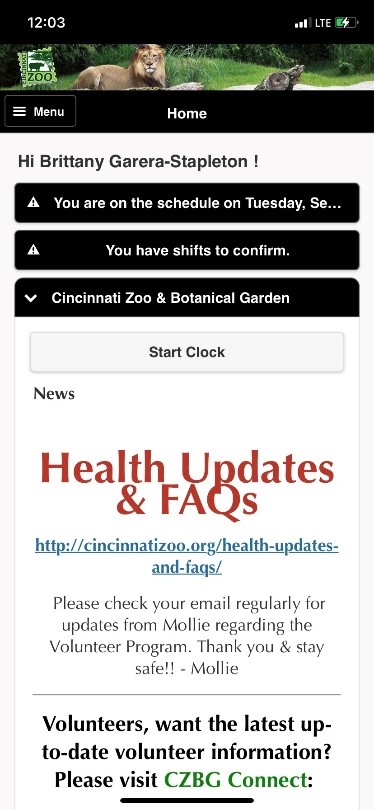
Home Screen
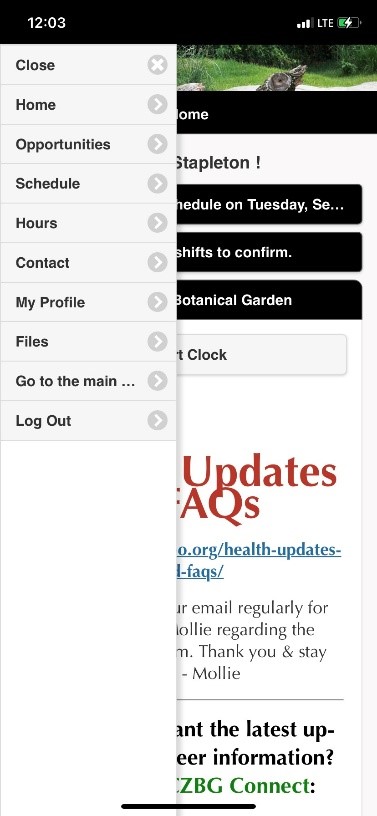
Click on the 3 lines in the Top Left Corner next to “More”
“More” Pop-Up Window
Select “Hours”
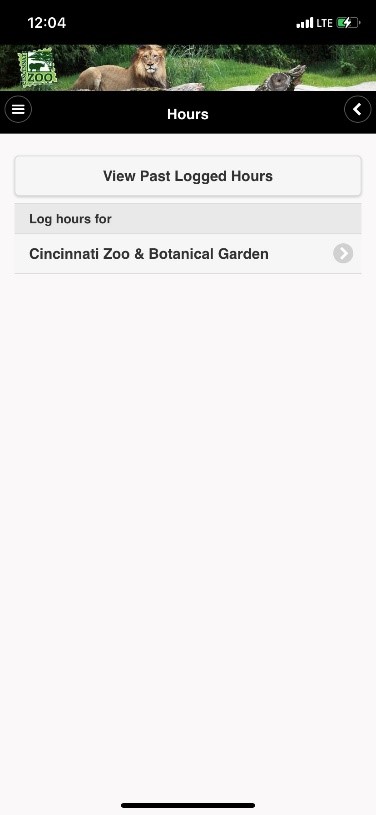
Hours Screen
Select “Cincinnati Zoo & Botanical Garden”
Logging Hours
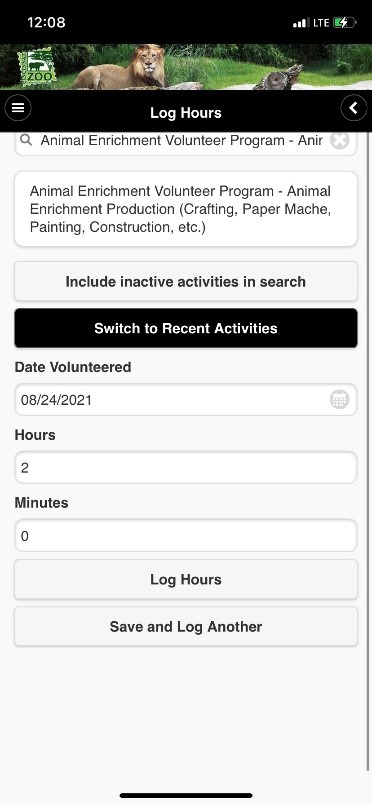
To search for the Volunteer Activity you will be logging, start to type the name in the box at the top of the page. Once you start typing there will be a drop down box with selections. Choose the activity that best fits the Activity you will be logging.
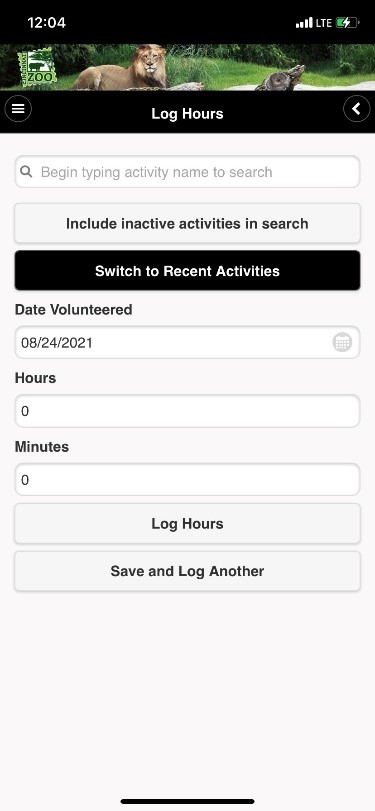
Once you have selected the Activity, fill in the Date along with the time you Volunteered and Click on “Log Hours.” If you are logging more than one entry for the same activity you can click on “Save and Log Another” and you will only need to change to date for the additional shifts.